
PonyBuy Spreadsheet
Find products by name, item ID or marketplace link. Browse the catalog, compare product photos and open the matching PonyBuy listing.
Browse categories
View full catalog

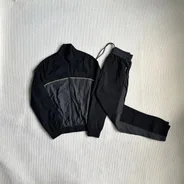
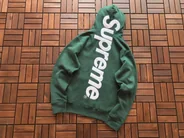
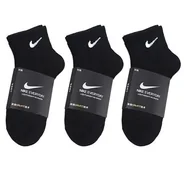
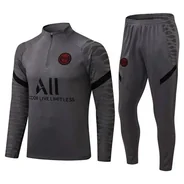

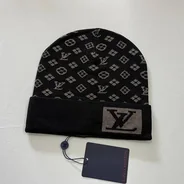

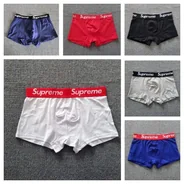
Popular finds
Frequently viewed listings across categories.
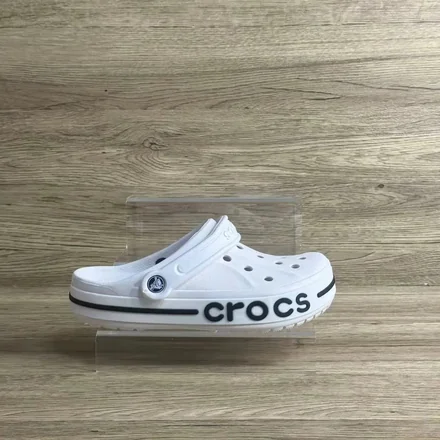
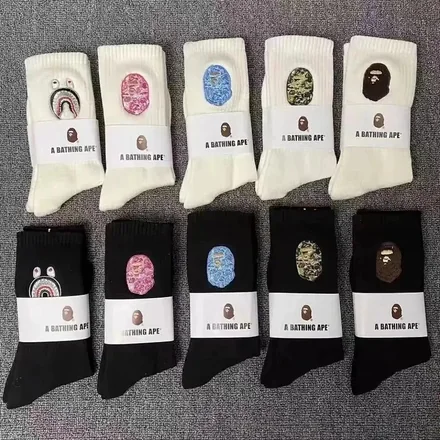
Accessories
Emblem Crew Sock Color Collect
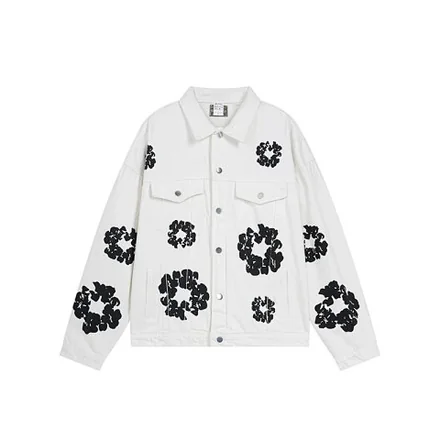
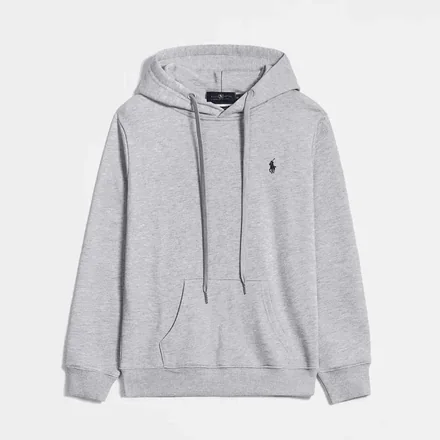
Hoodies & Sweaters
Embroidered Pullover Hoodie -

Other Stuff
Patterned Swimwear Collection
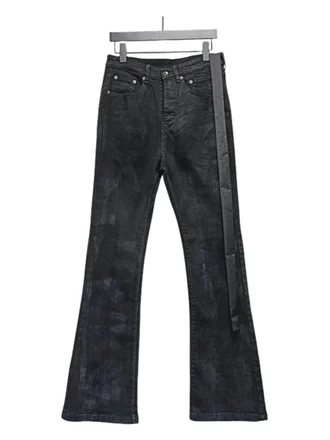
Pants & Shorts
Coated Flared Jeans with Ribbo
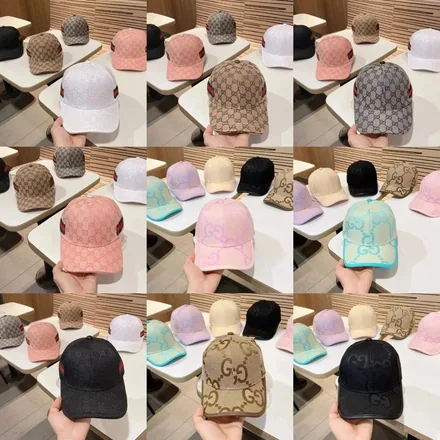
Headwear
Monogram Baseball Cap Collecti
Frequently asked questions
Finding and ordering products
What is the PonyBuy Spreadsheet?
Findsheet is a catalog maintained by Findspreadsheet. Search by product name, Weidian ID or seller link. The product page shows seller photos, available options and a reference price. PonyBuy handles ordering, warehouse inspection and shipping after you open its product page.
Browse the spreadsheetHow do I order an item through PonyBuy?
Open the item on Findsheet and verify the listing ID, style and size. Select “Open PonyBuy listing,” sign in on PonyBuy and check the live options and quantity again. At checkout, review the item total, domestic delivery and any optional services before confirming payment.
See the illustrated buying guideCan I search with a Weidian link?
Yes. Paste the original Weidian product link or enter the numeric listing ID, such as 7871821866. If the listing is outside the catalog, open the full Findspreadsheet catalog from the empty result or paste the original link into PonyBuy and verify the imported listing.
Can I search with a product photo?
Yes. Upload a clear product photo or choose “Search with this photo” from a listing. The search compares images from this catalog inside your browser. Check the title, options and original seller page before deciding whether a similar-looking result matches.
Image searchCan I use another buying platform?
Open “Other buying platforms” on the product page and choose a platform by its name and logo. Each link points to that platform’s version of the same seller listing. Compare stock, fees, shipping routes and after-sales terms on the platform you select.
Warehouse, fees and delivery
Does the displayed price include shipping?
The price on Findsheet is a currency conversion of the seller’s item price. The first PonyBuy payment can include the item and seller-to-warehouse delivery. After warehouse arrival, PonyBuy quotes international shipping for the packed parcel. Optional packaging, insurance and applicable import charges can increase the total.
Estimate shipping costsWhere can I see quality-check photos?
After inspection, open the item in PonyBuy’s User Center → Warehouse. Compare the warehouse photos with the order details and inspect the size tag, color and obvious defects. The images on Findsheet show the seller listing. Use the warehouse photos to check the exact item received.
Read the warehouse photo guideWhat if my item arrives damaged or in the wrong size?
Keep the item in the warehouse and contact PonyBuy through the order or after-sales service. Provide the order number and identify the relevant photo. Check the current return or exchange window, seller eligibility and any domestic return fee before you submit the parcel.
Check PonyBuy’s returns policyCan I combine orders into one parcel?
Once the items are available in Warehouse, select the ones you want to ship together and start a parcel. Review the packed size, destination, route limits and any paid packaging options. If an item restricts the route you want, compare shipping it separately before you pay.
Where do I track international delivery?
After dispatch, open User Center → Parcels on PonyBuy. Open the parcel to see its status and tracking information. Keep the parcel number and delivery photos if you need to ask PonyBuy about a delay, damage or a missing item.
See the parcel and tracking guideShopping guides
All guidesHow to buy through PonyBuy
Start with a Findsheet listing, confirm the seller options and place the item order on PonyBuy.
How to check a seller listing and its options
Match the listing ID, compare variants and open the same item in your preferred agent.
How to find a product by image
Use a photo to find similar items, then compare the seller listing and options.
How to review warehouse QC photos
Find the inspection photos in PonyBuy and check the item before international shipping.
How to estimate shipping costs
Review the order total, parcel dimensions and shipping quote in PonyBuy.
How to consolidate, ship and track a parcel
Submit stored items for delivery and follow the tracking updates in PonyBuy.